Every logged meal in BeforeIBite is editable. The AI is fast but not perfect — sometimes it estimates the portion high, misses an item, or invents one that wasn't on the plate. This article walks through the editor and how to fix each kind of issue.
Open the editor
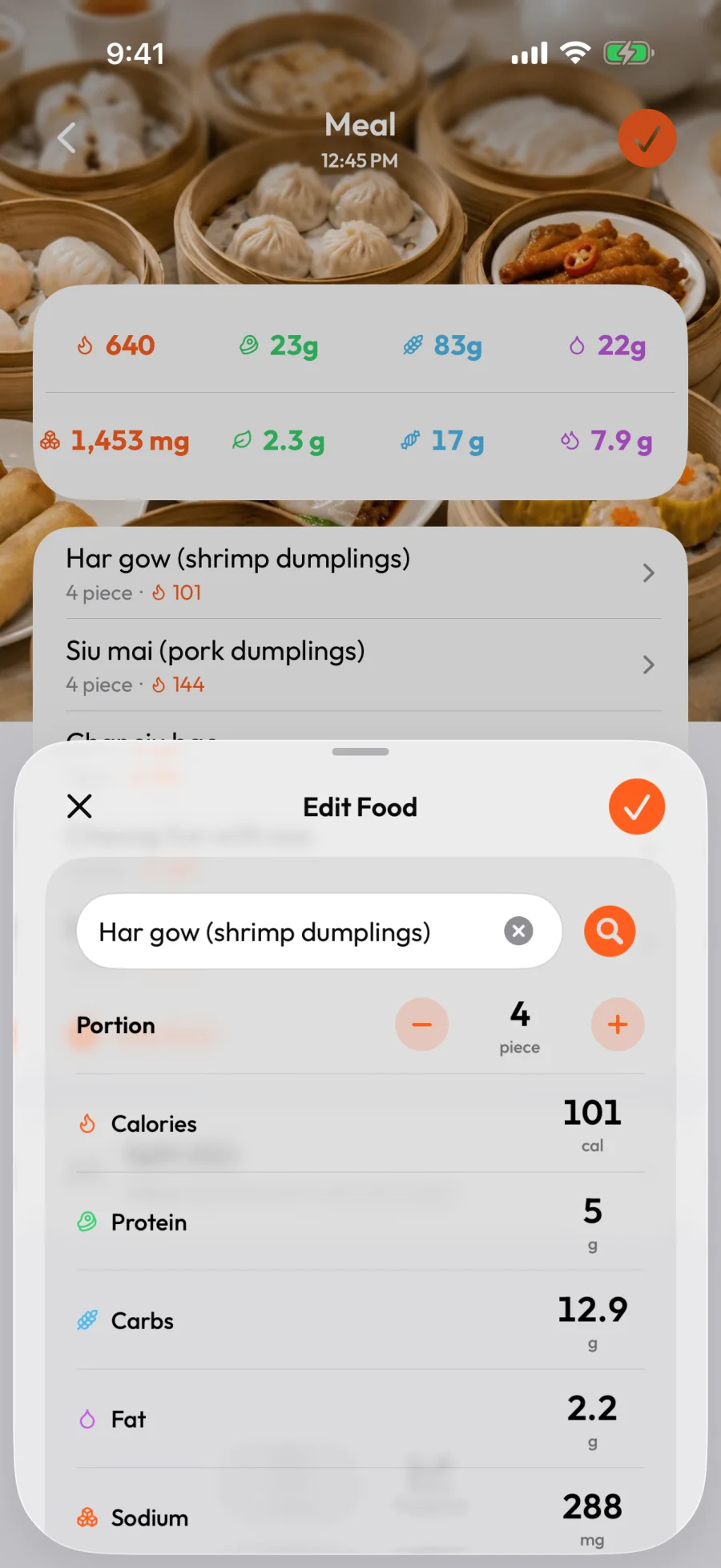
From the Today tab, tap any logged meal to open its detail view. Tap an individual food item to open its editor.
Adjust the portion
The Portion stepper changes how much you actually ate. Tap − to decrease, + to increase — every nutrition value updates in proportion.
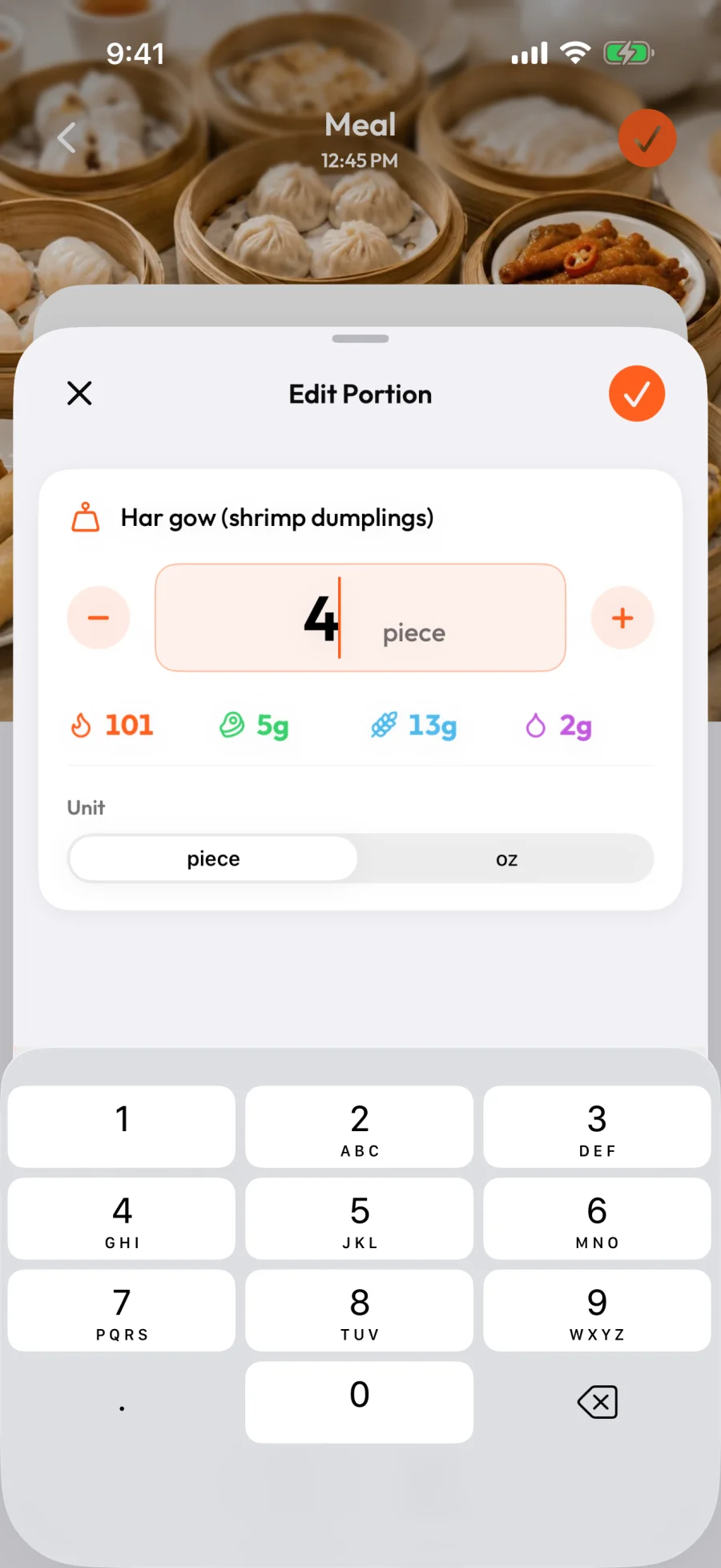
For a focused portion editor — with a number pad for an exact value and a unit toggle — open the Edit Portion view:
Switch the unit
The unit toggle offers two ways to measure the same food — a counted unit (piece, slice, serving, bowl…) and a weight or volume (g, oz…). Pick whichever matches how you measured:
- Counted units — when you ate a whole number of standard servings.
- Weight or volume — when you weighed it, or ate a fractional amount that's awkward to count.
Switching units recalculates the nutrition automatically.
Fix the food name
How you fix a wrong name depends on what's actually wrong:
- Right food, wrong label. If the nutrition is correct and only the name reads wrong, edit the name field directly. This relabels the item without changing its nutrition — which is what you want here.
- Actually a different food. If the AI identified the wrong food entirely, editing the name text won't help — it relabels the item but doesn't re-fetch nutrition. Use the search button in the editor to look up the correct food and replace the item; that swaps in the right name and the right nutrition.
Override an individual nutrient
Below the portion stepper, the editor shows a row for each value — Calories, Protein, Carbs, Fat, and Sodium. Tap any row to type an exact number. Use this when you have a nutrition label in front of you that disagrees with the AI's estimate.
Remove an item the AI invented
In the meal detail view, swipe left on any item the AI added that wasn't on the plate to delete it. The meal totals at the top recalculate automatically.
Add an item the AI missed
From the meal detail view, tap Add food. Search for it by name, or pick it from your recent foods.
Save or discard
Tap the ✓ in the top right to save your edits. Tap the ✕ to discard them and leave the meal as it was.
Edits and your daily totals
Saved edits immediately update your daily totals on the Today tab and the trends in the Progress tab. There's no undo, but you can re-open the meal and edit it again at any time.