By default, every meal you log is stamped with the current time and counted against today. If you're catching up on a meal from earlier — or logging from an older photo — you can move it to the right day in a few taps.
Requires version 0.9.9 or later. Some features described below may not be available if you're on an older version. Open the App Store, search for BeforeIBite, and tap Update if one is available.
Browse to a past day
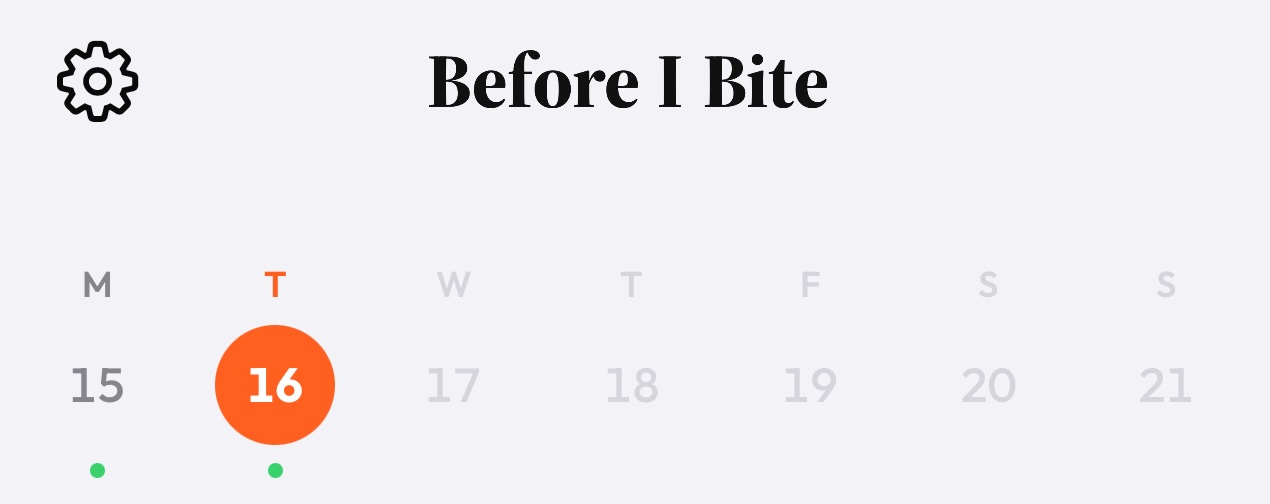
The week strip at the top of the Today tab shows the current week. Swipe it left to scroll back through previous weeks, then tap any day to jump to it. Green dots beneath a date indicate meals were logged that day. Future dates are dimmed and cannot be selected.
You can also navigate to a past day from the Progress tab — tap Calendar and select any date to view that day's meals.
Change the date and time of a meal
While reviewing a meal in the editor, scroll down to the Change Date & Time row. The current date and time are shown as a subtitle beneath it — tap the row to open the Edit Date & Time sheet with a scrollable wheel picker for both the date and the time.
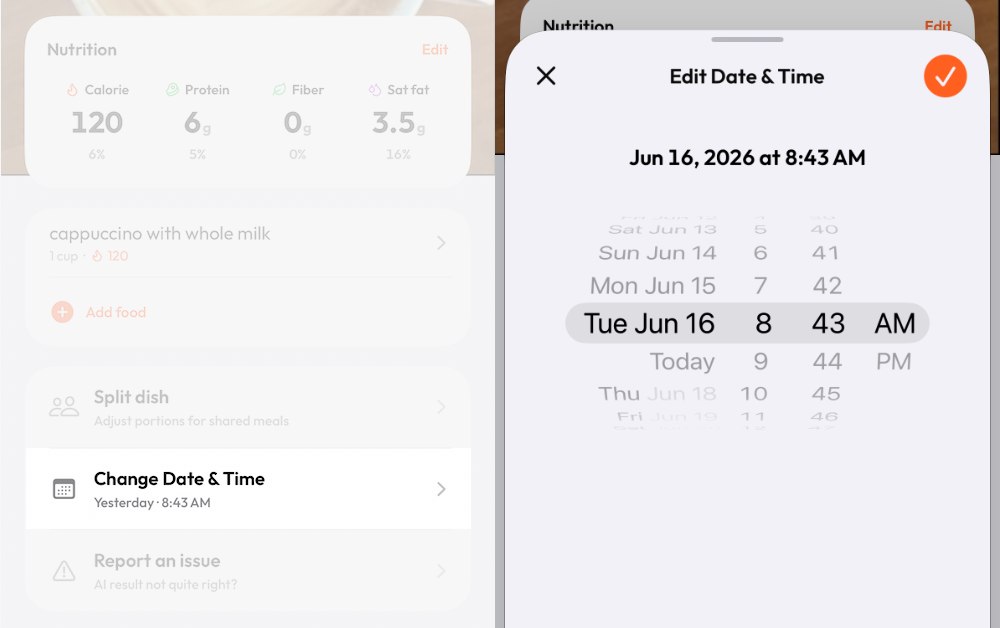
Scroll to the date and time you actually ate the meal, then tap the orange ✓ to apply. The picker won't let you select a time in the future — all entries must be in the past.
If you move the meal to a day other than today, BeforeIBite will ask you to confirm before saving:
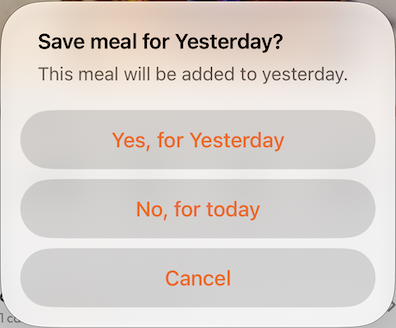
The confirmation shows the actual destination — "Yesterday", "Last Friday 13th June", or whatever the resolved day is. Tap Yes, for [day] to confirm, No, for today to save it to today's log instead, or Cancel to go back to the editor.
Log a past meal from a photo in your library
Tap the + button on the Today tab and choose Photo Library. After you select a photo, BeforeIBite reads the original timestamp from the image metadata and uses it as the default meal time — so a photo taken at 12:45 pm last Tuesday will automatically propose last Tuesday 12:45 pm as the meal time.
If the photo's date differs from the day you have selected in the week strip, the meal editor will ask which day to log it for:
- The photo's day (default) — log the meal on the day the photo was taken, at the time shown in its metadata.
- Your selected day — ignore the photo's date and log the meal on the day you tapped in the week strip.
You can still adjust the date and time further after making this choice — scroll down to the Change Date & Time row in the editor before saving.
If the photo has no embedded timestamp (some screenshots and edited images don't), the meal time defaults to the selected day without showing a prompt.
Timezone changes
BeforeIBite records the timezone in effect when each meal is saved. If you travel across timezones, meals you logged before you left stay anchored to the day they were recorded in your home timezone — they won't shift to a different date just because your device clock changed.
New meals after a timezone change are saved in your current timezone, each appearing on the correct local day.
Example — a late-night flight: You're eating a bowl of laksa in a Singapore (SGT, UTC+8) airport lounge at 11:30 pm. You log it before boarding. Five hours later the plane lands in Tokyo (JST, UTC+9) and it's 3:30 am local time. You grab a snack and log that too.
- The laksa is saved at 11:30 pm SGT — it appears on Tuesday in Singapore time, which is where you were when you ate it.
- The Tokyo snack is saved at 3:30 am JST — it appears on Wednesday in Tokyo time.
Neither entry shifts when your phone switches timezone mid-flight. Each meal stays on the day it was actually eaten, in the timezone you were in at the time.