Sometimes you can't take a photo — the meal is gone, you didn't want to log in front of company, or you're offline. Type the name instead.
When to type instead of scan
- The meal is over. You forgot to log at the table; log later from memory.
- You're offline. Photo, barcode, and label scanning all need the network. If you're offline, type what you ate and adjust the nutrition by hand from a label or memory.
- You don't want to log in front of others. Typing in a few seconds is less conspicuous than holding up your phone to photograph the table.
- The photo flow keeps getting it wrong. For obscure or homemade dishes, the food name is sometimes more reliable than the photo.
The flow
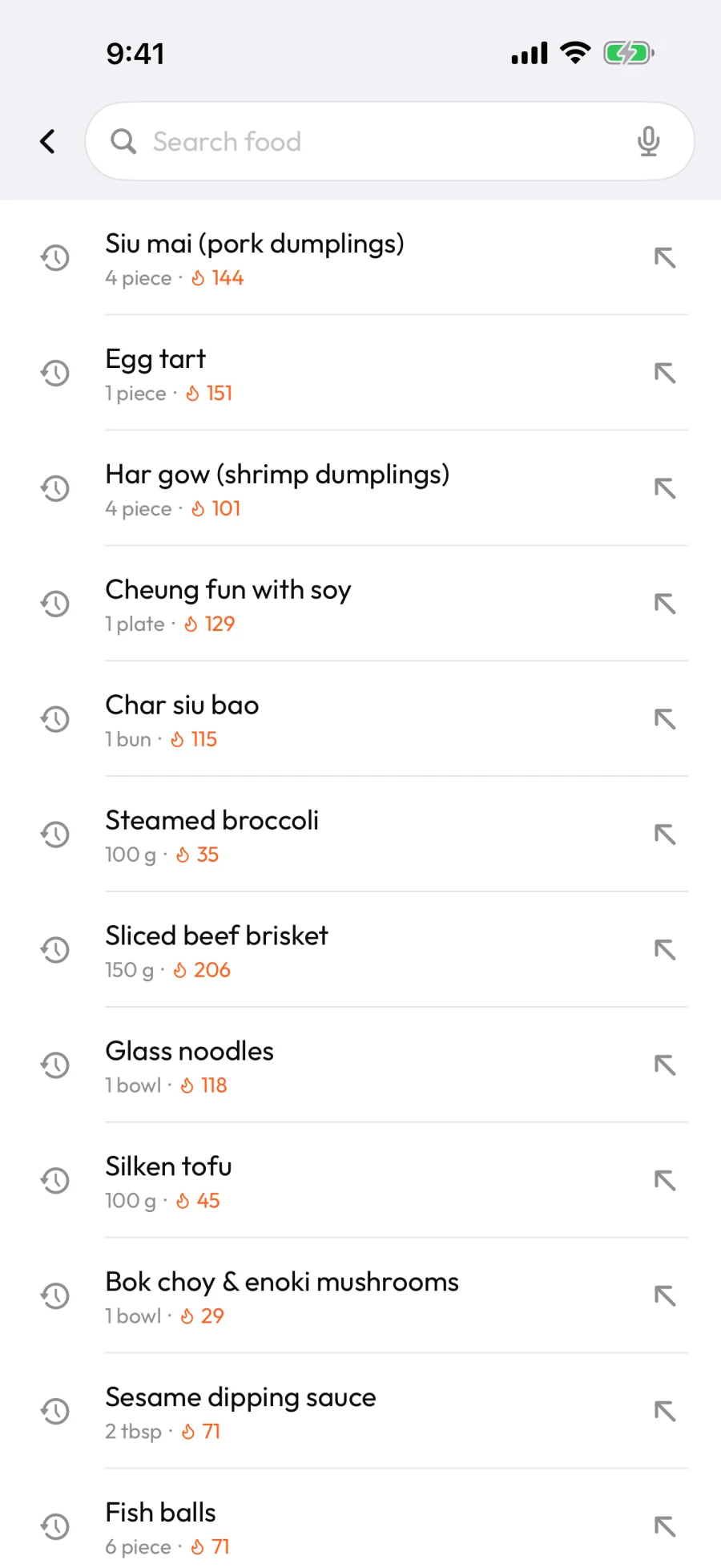
- Open the food search — tap Add food from a meal, then use the Search food field at the top.
- Type what you ate. BeforeIBite looks up nutrition and shows matches; your recent foods also appear below the field for quick re-logging.
- Tap a result to add it to the meal, with calories and macros filled in.
- Adjust the portion to match what you actually ate.
- Repeat for any other items, then save the meal with the ✓.
Naming things the lookup knows
The lookup works best on specific, common names. A few patterns help:
- Be specific. "Pad Thai with chicken" gets better results than "noodles".
- Use the dish's actual name. "Bibimbap", "Mezze platter", "Hainanese chicken rice" all work better than generic descriptions.
- Add the protein or main ingredient. "Chicken curry" beats "curry" — the lookup needs at least one anchor to estimate macros correctly.
- Skip restaurant brand prefixes unless you mean a specific well-known menu item. "Big Mac" works because it's well-known; "Joe's special burger" doesn't.
If the lookup can't find what you typed, you'll see "Couldn't find nutrition info for … — try a more specific name." Either rename it or enter the nutrition values yourself from a label.
Voice input
If typing is awkward — hands full at the table — tap the microphone icon in the Search food field to dictate the name instead. The transcription goes straight into the search. If voice input is unavailable on your device, the icon's tooltip explains why.
Editing after entry
It's the same editor as the camera and barcode flows — you can adjust the portion, switch units, and override individual nutrients. See Edit or correct a logged meal.