The nutrition label scanner reads the nutrition facts panel on packaged food directly — no barcode database lookup required. It's the right tool when the barcode comes up empty.
When to use this instead of the barcode
The barcode scanner is faster when it works. Switch to the label scanner when:
- The barcode came back as "Product not found".
- You're holding an imported or regional product the global databases don't cover.
- The item has a nutrition label but no barcode (in-house bakery items, restaurant takeaway boxes with printed nutrition, refrigerator labels).
- You only have a photo of the label, not the actual package.
The flow
- From the Today tab, tap the + button to open the capture sheet.
- Switch the scanner mode at the bottom to Nutrition label scanner. The prompt becomes "Frame the nutrition label clearly."
- Point your camera at the nutrition facts panel and hold steady. Tap the shutter when the label is sharp and fully in frame.
- Reading the label... runs for a few seconds while the OCR extracts the values.
- You land in the meal editor with the parsed values pre-filled: calories per serving, protein, carbs, fat, and any micronutrients the label lists.
- Confirm the food name (the OCR may not capture it), adjust the portion to match what you actually ate, then tap ✓ to save.
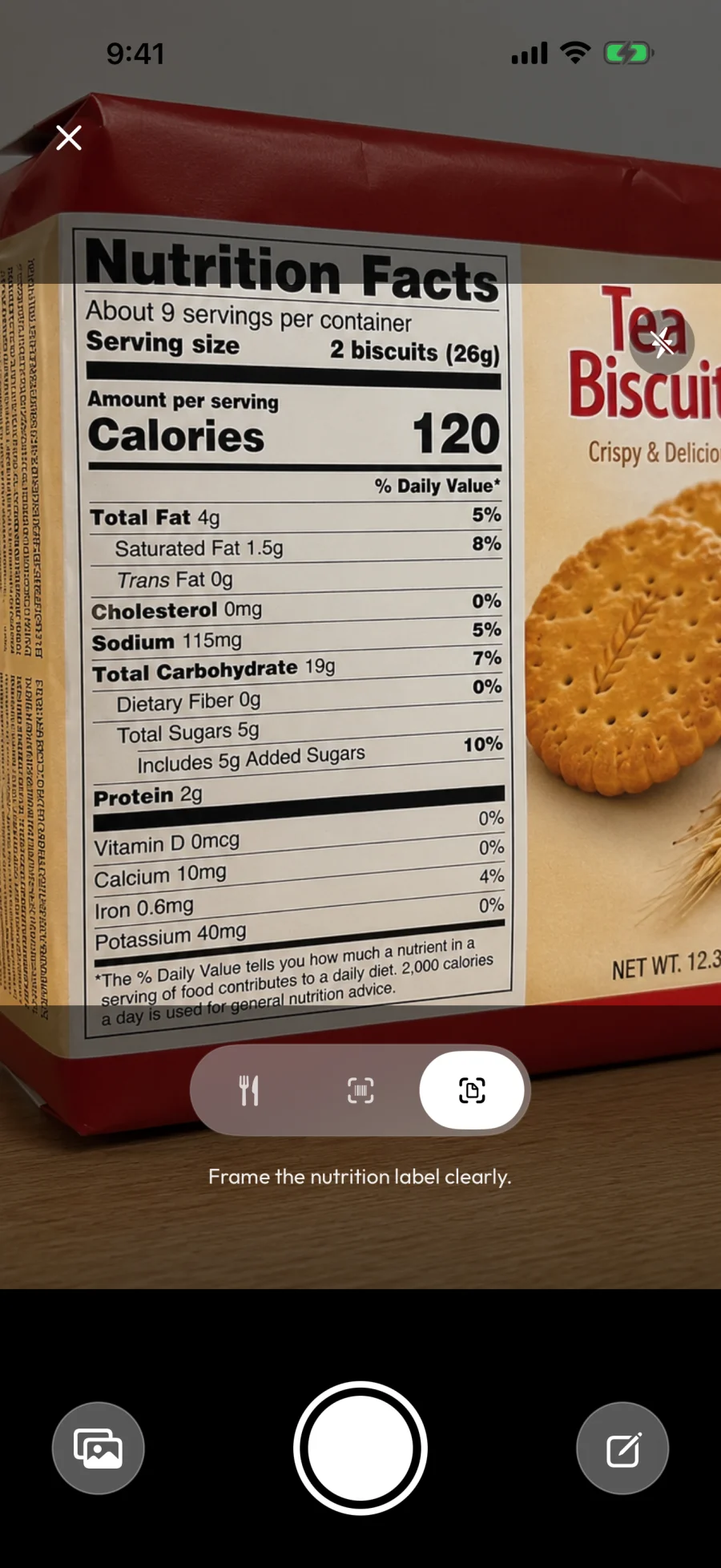
Tips for clean reads
OCR is sensitive to image quality. A few habits help:
- Hold the phone parallel to the label. Skewed angles distort the text and reduce accuracy.
- Fill the frame. Get close enough that the nutrition panel takes up most of the viewfinder.
- Avoid glare. Curved or shiny labels (chip bags, soft-drink bottles) reflect light — angle the package slightly to avoid the bright spots.
- Steady the camera. Rest your elbows on a surface if you can; motion blur is the most common reason OCR misreads numbers.
When the OCR fails
If the OCR can't make sense of the panel, you'll see "We could not read that label" with a Scan Label button to try again. Re-frame using the tips above — a flatter angle with the panel fully in view usually fixes it.
If the label still won't read, back out and log the item another way — scan its barcode if it has one, or type the name and enter the values from the label by hand.
Sharing a labeled product
Logging half a tub of ice cream that you split with someone? Log the full serving first, then use the split-dish flow to assign yourself the right portion. See How to log shared meals.